
Keeping assignments on the same Bookshelf as your course reading means learners have one place to go for everything. You write the assignment in Google Docs, paste the link into your Bookshelf, and your learners can open it straight from there.
Before you start
Make sure you have:
- A Google Doc containing your assignment
- Permission to change the sharing settings on that document
- A Bookshelf to add the assignment to
Note: The link must be a public URL for this to work. If the Google Doc is restricted, your learners will be asked to request access or sign in to Google, and won't be able to open the assignment from the Bookshelf.
Make your Google Doc public
- Open your assignment in Google Docs and click Share.
- Under General access, change Restricted to Anyone with the link.
- Set the role to Viewer. This lets learners read the assignment but not edit it.
- Click Copy link, then Done.
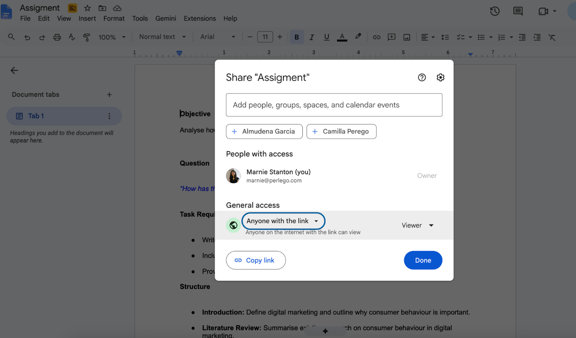
Note: Anyone who has the link can open the document, so don't include personal or sensitive information in it.
Add the link to your Bookshelf
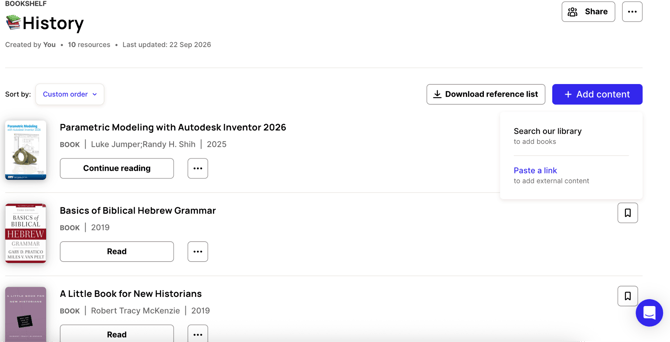
- Open the Bookshelf you want to add the assignment to.
- Click Paste a link to add external content
3. Paste the Google Doc link into the URL field.
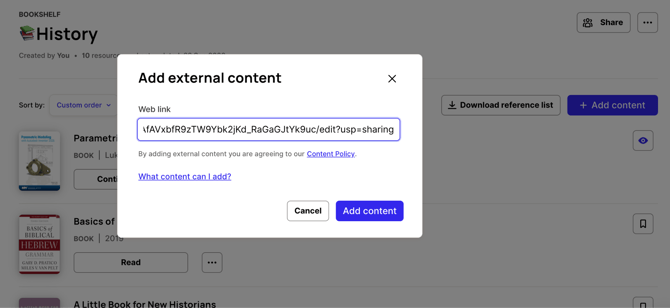
4. Add a clear title, such as "Assignment 1: Essay brief", so learners can spot it among the other items.
5. Save your changes. The assignment now appears on your Bookshelf.
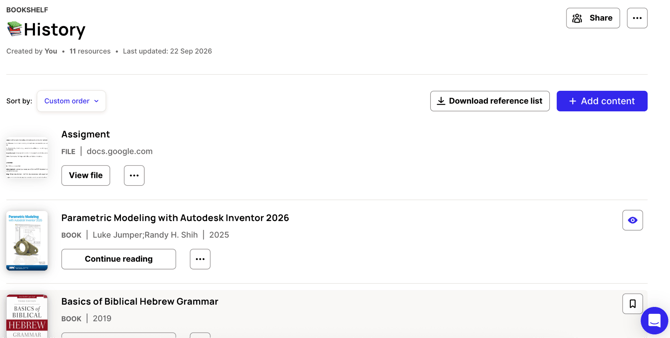
Check the link works
Before you share the Bookshelf with learners, open the link in a private or incognito browser window, or while signed out of Google. If the document opens without asking you to sign in or request access, your learners will be able to open it too.
If you're asked to sign in, go back to your Google Doc and check that General access is set to Anyone with the link.
Note: If you change the document's sharing settings later, the link on your Bookshelf will stop working for learners. Keep the document public for as long as the assignment is live.